I needed headless (well, inputless) system for displaying a slideshow from a USB drive via HDMI. I had a Raspberry Pi 0 with an attached USB hub and a USB WiFi dongle lying around. Here goes…
Install Raspbian Lite 32bit, e.g. via Raspberry Pi imager
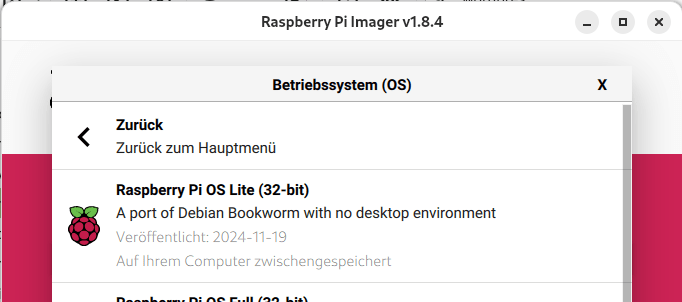
Note that you can set up user name, password, SSH and WiFi in Raspberry Pi imager before writing the image to the SD card which can save you some time!
Improve RPI Zero performance
Add these settings to your /bootfs/firmware/config.txt to make your RPI go wroom:
# Disable rainbow splash
disable_splash=1
# Disable GUI start
start_x=0
# Disable hardware TTY
enable_uart=0
# Overclock SD card (careful with this!)
# See: https://lektiondestages.art.blog/2020/01/21/overclocking-sd-cards-on-the-raspberry-pi/
dtparam=sd_overclock=83
# Pi Zero W modest overclock
# See: https://lektiondestages.art.blog/2020/01/23/overclocking-the-raspberry-pi-zero/[pi0]arm_freq=1100
over_voltage=4
core_freq=500
sdram_freq=500
over_voltage_sdram=2
Optional: Set up WiFi and activate SSH
If you haven’t done it yet, use via raspi-config to set everything up. While you’re at it you could update your system:
sudo apt update && sudo apt upgrade -yand reboot
Optional: Set up Raspberry Pi as an access point
Add a WiFi hotspot connection using nmcli:
sudo nmcli device wifi hotspot ssid "<hotspot name>" password "<hotspot password>" ifname wlan0Enable WPA3-only security:
sudo nmcli connection modify Hotspot 802-11-wireless-security.key-mgmt "sae"Enable automatic connections:
sudo nmcli connection modify Hotspot connection.autoconnect yes connection.autoconnect-priority 100Alternatively use nmtui:
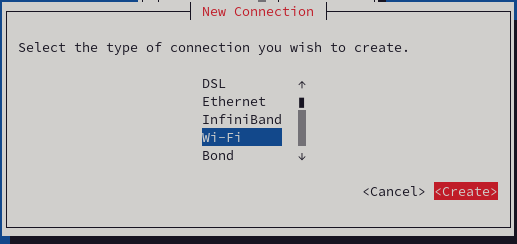
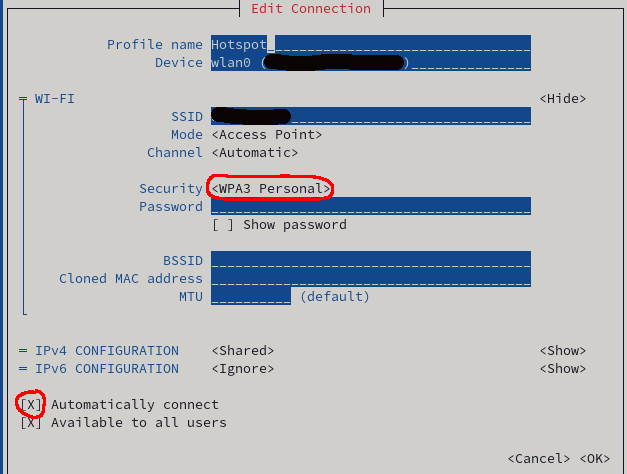
The access point should become available immediately.
Add a splash screen / start slideshow when inserting a USB stick
Follow instructions here.
Hide all boot messages
Add / change these settings (on a single line!) in your /bootfs/firmware/cmdline.txt:
console=tty3 quiet loglevel=3 logo.nologo vt.global_cursor_default=0Explanation:
- Move the console output to a different console:
console=tty3 - Quiet console output:
quiet - Adjust the log level:
loglevel=3 - Turn off the Raspberry Pi logo:
logo.nologo - Turn off the blinking cursor:
vt.global_cursor_default=0
Hide console login
Turn off your console login on tty1 completely (you can still login via SSH or when switching to tty2 using CTRL+ALT+F2):
sudo systemctl disable --now getty@tty1Reboot
Insert a USB stick with image files and enjoy your slideshow
 Lektion des Tages
One thought on “A digital signage / kiosk system using Raspbian Lite / RPI Zero”